
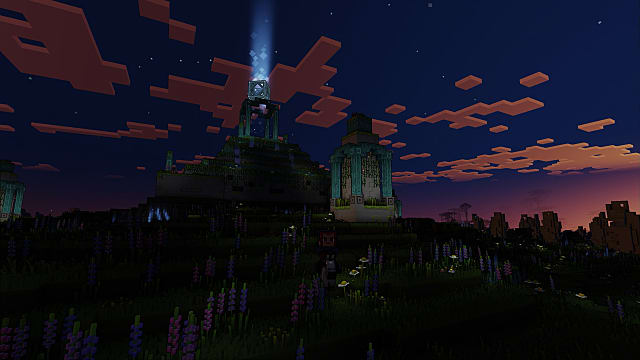
Running into any issues when trying to play a game is no fun. And if you’ve gotten stuck on the connecting to your account error screen in Minecraft Legends, you know it’s a major bummer. Luckily, the issue can be relatively easy to fix. Below, we explain what the error likely is before providing some methods that have worked for us, as well as though that typically work when running into errors like this.
Minecraft Legends Connecting to Your Account Error Explained
When you first boot up Minecraft Legends, the game will search for your account, then log you into your account. It will search for any necessary updates and sync your saved data, as well. Normally, the game starts and you can get to saving the overworld from the Piglin threat.
However, the connecting to your account error is an Internet-related issue. It likely means that you’ve:
- Lost your Internet connection
- Your Internet connection has been interrupted
- Or there’s a problem with the Minecraft Legends servers
If you’ve run into this error, you already know that the game takes longer than normal to start when the issue arises, and the MC Legends splash screen seems to freeze, simply displaying that it’s trying to connect to your account.
So is there a fix for the issue?
How to Fix the Connecting to Your Account Error in Minecraft Legends
As with any internet-related error, there are a few things you can try. however, none of the potential fixes below are guaranteed to work. We’ll start with the most likely problem and easiest fixes.
Wait Out the Loading Screen
Usually, this advice isn’t helpful. However! I purposefully disconnected my Internet connection to test this error on PC and was able to get past the error simply by waiting.
After logging in, I was met with “connecting to your account” and the MC Legends splash screen seemed frozen. After waiting for about 45 to 60 seconds, I was able to log in, choose my character, and play — even though my Internet was disconnected!
It’s worth noting that I had previously played Minecraft Legends before purposefully disconnecting my Internet connection, so this fix could have something to do with local save files, account files, or file caches.
Exit the Launcher and Restart Minecraft Legends
Another simple fix, closing or exiting the MC Legends launcher and restarting the game could be a solution for getting around this error. While you have the launcher closed, you can complete the step below, as well.
Likewise, if you’re playing on Steam, restart the application and try again. You can do the same on PlayStation, Xbox, and Nintendo Switch systems.
Verify the Integrity of Your Game Files
This step is only for those playing MC Legends on Steam. If you run into this issue, be sure to verify the integrity of your game files. It’s possible that some files became corrupted or were erased when installing or updating the game.
Check Your Internet Connection
In most cases, connecting to your account takes longer than it should — or never happens — because you’ve lost your Internet connection. This could happen for any number of reasons.
You can troubleshoot on various platforms by going into your Settings and choosing Network options. On PC, go into Control Panel and choose Network and Internet.
Check and Reset Your Router
If you’ve lost your connection, reset your router by unplugging it and turning it off for at least 30 full seconds. Plug the router back in, turn it back on, and wait for the appropriate lights to come back on. Then check your Internet connection on your device again.
Check Your VPN, Firewall, and Antivirus Settings
It’s always possible any VPN or Antivirus software could cause issues with Minecraft Legends logging into your account. Likewise, Firewall settings could affect any connection issues. It’s always wise to double-check all of your settings to make sure they aren’t causing problems.
Currently, those are the potential fixes and causes of the connecting to your account error in Minecraft Legends. As always, it’s also good to keep track of the official MC Legends Twitter account and Discord server to stay informed of potential server-side issues, as well — which can impact you’re ability to log in. For more, check out our Minecraft Legends guides page.